Saturday, October 26, 2019

Cyberbullying Awareness and Parental Monitoring blog #7


The thing that stands out to me about bullying and cyberbullying is that adults are just as bad as children, if not worse. In the Seven Deadly Sins video, “We Can Destroy You and That’s OK”, Jon Ronson described how easy it was for him to get caught up in negative banter and public shaming on social media. As he no longer shames people publicly, he’s written a book about it. What struck me the most about the Seven Deadly Sins was that folks who are babyboomers, and not millennials have fallen victim to cyberbullying and other internet sins.

Not to throw any political shade, but I can’t stand the constant negative name calling and derogatory Tweets that bombard news feeds and the nightly television news. Then, you have the negative comments, arguments, and opinions that ensue that can get really ugly. My internet diet keeps me away from that mess! Most of it is not worth the read or a response. As an educator, it’s a hard pill to swallow when the adults, especially our political leaders, do not set a good example for our children. And, some of them are the ones who have written or voted for cyberbullying awareness or punishment of cyberbullying crimes. Faucher, Cassidy, and Jackson (2015) researched the difference between bullying, harassment, and cyberbullying in K-12, colleges, and the workplace, and found that it is more than a school-age bullying issue. The authors noted that incivility was on the low end of bullying but had the potential to fester into a much larger problem.


As a parent, I felt it was my job to learn how to monitor and protect my children’s on-line behavior to the best of my ability, and that included using on-line parental controls way back during the time of having a dial up internet service! I also took upon myself to learn about and set up digital monitoring software on our home computer, which was placed in an open spot in the house. I communicated and questioned my sons about some of the inappropriate screen names that some of their “so-called digital friends” had which I sometimes felt inappropriate. Before colleges and potential employers started scouring the internet, I discussed with them what they should and shouldn’t share, and occasionally I still put my two cents in about a post that I think is unflattering!

As an educator, it’s not only my obligation to teach the students about being a good digital citizen, but also the parents. Parents, grandparents, and guardians are providing technology to children without realizing that they need to be taught the rules of this super highway. Just like learning how to drive a real car, there are ruts in the road and one needs to learn how to avoid them, if at all possible.  As educators, we must teach civics and digital citizenship before we start expecting students to use technology at school, starting in elementary school. Teaching civility and empathy is not a one and done type deal. It must be revisited and employed often within our regular classroom instruction. This year, the STEM Instructional Coach put together some digital citizenship lessons and a presentation, which she had me narrate. The lessons require the students to regularly reflect and respond in their STEM Advisory journals after each lesson. The culminating activity will be to produce a poster to hang in their Advisory Classroom.

As the school communications liaison and media specialist, I will share two parental digital awareness sources with parents via the school’s social media sites and my library web page, which will include Digital Awareness for Parents from Stopbullying.gov and PC Magazine’s informative article and reviews of The Best Parent Control Software for 2019 (Rubinking & Moore). I will also share Top Ten Tips for Teens with the students and parents and encourage they discuss the tips and strategies presented in an easy to understand format. Parents and guardians need to be provided with the necessary tools to help curb cyberbullying, which typically takes place away from school.


Sources:

Faucher, Cassidy & Jackson. (2015). From the sandbox to the inbox: Comparing the acts, impacts, and solutions of bullying in K-12, higher education, and the workplace. Journal of Education and Training Studies. doi: https://doi.org/10.11114/jets.v3i6.1033

Hinduja & Patchin. (2018). Standing up to cyberbullying: Top ten tips for teens. Retrieved from https://cyberbullying.org/standing-up-to-cyberbullying-tips-for-teens.pdf

Digital awareness for parents. (2017). Stopbullying.gov. Retrieved from https://www.stopbullying.gov/cyberbullying/digital-awareness-for-parents/index.html


Rubinking & Moore (2019). The best parent control software for 2019. PC Magazine. Retrieved from https://www.pcmag.com/roundup/240282/the-best-parental-control-software

Saturday, October 19, 2019

Create an Easy Digital Story blog #6


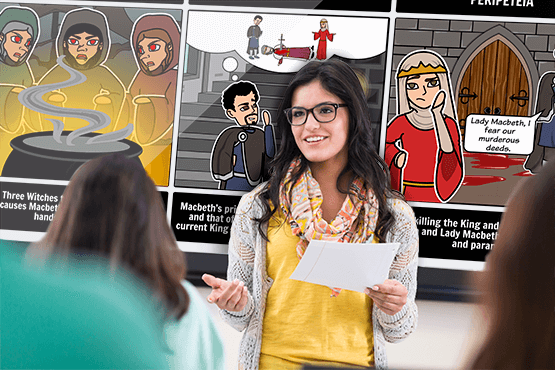
Let your imagination flow using StoryboardThat, a digital storytelling tool, to create graphic novels, posters, infographics, worksheets, and slideshows. Those are just a few ideas, but the sky is the limit! This tech tool can be accessed via the app, the StoryboardThat’s website, or through one’s Clever, Office 365, Google, Twitter, or Facebook account.

This app works better on a laptop or desktop while creating a digital story, as the graphics take up a lot of the screen on a tablet or cell phone. The final product can be viewed on any type of device, which would make it a partially agnostic tool. (Moorefield-Lang, 2014, p. 8).

The first time you access the app, you are prompted step-by-step to create a simple, customized storyboard. I personally love the diversity of the characters and epochs, along with the drag and drop features. 

Some of the features that you can customize include:
  • Scenes
  • Speech or text bubbles
  • Characters
  • Shapes
  • Infographics
  • Web & wireframes
  • Science
  • Worksheets


The app has a free and paid versions. I will focus on the features of the free version as many schools and students have limited funds. 
  • The single user, free account includes:
  • Two storyboards per week
  • Classic layout with three and six cell storyboards
  • Limited printing 
  • Watermarked downloads


Students application ideas: demonstrate knowledge about a concept or standard, write a book, design a poster or infographic. One example would be for social studies students to create their own mythological storyboard after studying Greek and Roman mythology.

Educator use ideas: create instructional storyboards for professional development, or classroom rituals and routines, and lessons. Lesson plans and projects ideas are available at https://www.storyboardthat.com/articles/education/teacher-resources

A brief and very helpful introductory tutorial:


One of the best things about StoryboardThat, is it allows students to be creators and not just consumers of technology. And, the app can easily be used by any content area and co-curricular teacher, as well as guidance and the media specialist. 


Sources:


Getting started with storyboardthat. (2017). Retrieved from https://www.youtube.com/watch?v=xkgNAMDL_sM

Moorefield-Lang, H. (August/September 2014). An Exploration and Explanation of Device Agnostic Tools. Library Media Connection, 8-9. Retrieved from https://www.cosa.k12.or.us/sites/default/files/images/top_5.pdf


Sunday, October 13, 2019

Oh, Snap! The Words are Being Read to Me! Blog #5


Snap & Read Universal is a reading tool that will read aloud text on a computer, and is extremely beneficial to people with dyslexia, English Language Learners, or people with reading or learning differences. Snap & Read will also translate or convert text to several different languages.  

Every computer user in my school district has access to Snap & Read as a Google Chrome Extension. Our district purchased licenses so that students who receive Special Education services could have this tool available to them. However, all students can benefit from the reading tool. This tool is extremely helpful for students who require oral administration of assignments and exams. Teachers can upload Word documents, PDF’s, or even worksheets. In addition, teachers can view reports that track reading data such as time, words read, and reading level. 
  
There is a cross hair icon which is the symbol for Snap & Read on the Google Tool Bar Extension. Clicking on that icon takes the user to Preferences which I would suggest setting up or at least previewing upon the first use.  The user must sign in to use Snap & Read, which in my case would be my school district Microsoft Office 365 account to gain access. Before sharing links, users must make sure to sign out Snap & Read or else the recipient will have to log into Snap & Read in order to open the link. Text written on images are not automatically read, but the user can select the text to be read aloud.

                                                                             S & R Overview 

Some of the features/preferences include: 

  • Text leveling – to change the grade level of the text or word for comprehension  
  • Overlay/Reading guidelines – highlight one word to the entire page 
  • Speed, speaker, volume, and pitch can be adjusted to the user’s discretion 
  • Foreign languages – voice choice includes Spanish, French, German, and Italian 
  • Translate - to/from several languages other than those noted above, but it is only a text translation, no voice 
  • Change text and background colors 
  • Notetaking and Outline - Highlight text to populate the notetaking or outline box 
  • Citations – appear beneath notes, and will create a source page in APA, MLA or Chicago format 
  • Dictionary - double click on a word to see the definition and a picture 
  • Print – notes and outlines or save to OneNote 
  • Remove Distractions – from articles where only the text appears on the webpage    
Downloadable instructional resources and tutorials are available through the company’s web page, Learningtools.donjohnston.com under Product Resources at  

Now it's time collaborate with the special education teacher to train our teachers and students about Snap & Read!


Sources: 
Snap&Read. (2019).  Don Johnson, Inc. Human Learning Tools. Retrieved from https://learningtools.donjohnston.com/product/snap-read/ 

Curation for Kids

  Photo: AASL, 2018 Curation for Kids AASL Shared Foundation IV. Curate Make meaning for oneself and others by collecting, organizing, and ...